
The Linux terminal can seem intimidating for users who do not want to memorize commands like cp, mkdir, or lsblk. However, terminal user interface applications, known as TUI, allow users to work in the terminal using visual menus, keyboard navigation, and structured layouts instead of complex command syntax.
TUIs run directly in the terminal but offer interactive interfaces that resemble lightweight graphical tools. Here are four Linux TUI applications that can make the terminal more practical for everyday tasks.
Bandwhich Monitors Real-Time Network Activity
(Source: HowToGeek)
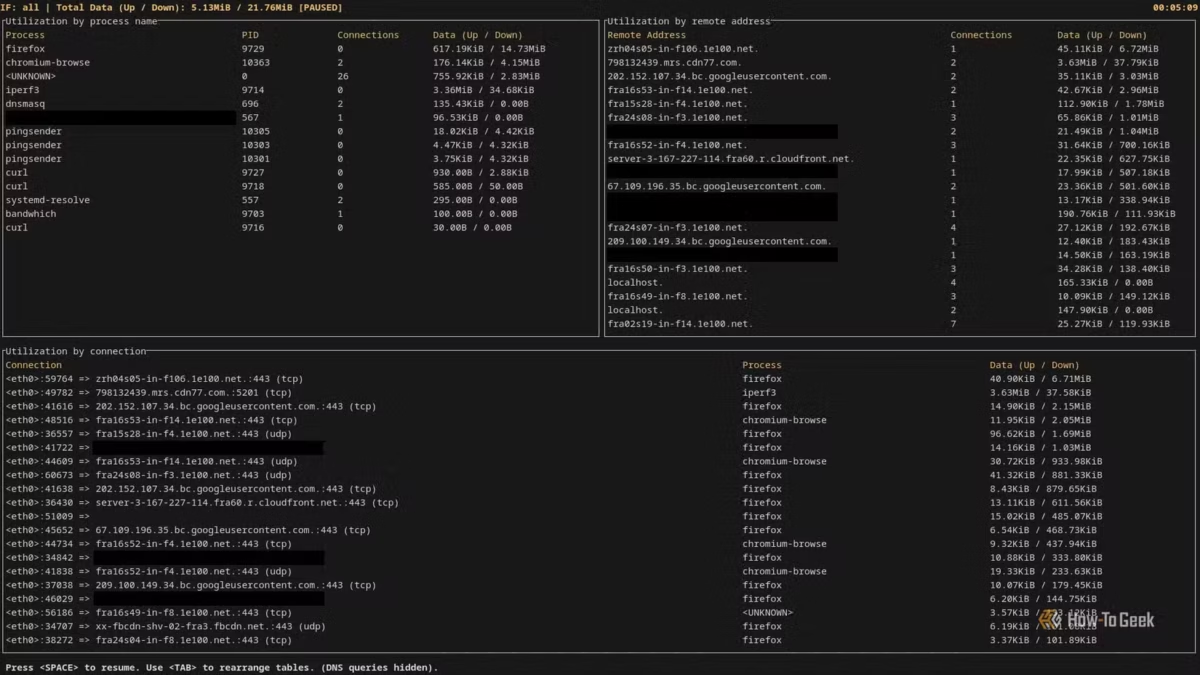
bandwhich is a terminal-based network monitoring tool that displays live connection activities system-wide.
When running, bandwhich shows:
- Active processes making network requests
- Process IDs
- Data transfer rates
- Network adapters in use
- Target hostnames
It can also resolve DNS names to make it easier to identify connection targets.
Installation varies by distribution:
On Debian or Ubuntu systems with Snap:
sudo snap install bandwhich
On Arch Linux:
sudo pacman -S bandwhich
On other distributions, users can download the latest binary from the bandwhich release page.
The tool needs to be run with elevated privileges:
sudo bandwhich
The optional -t flag provides total usage tracking instead of just recent packet activity.
Caligula Writes ISO Files with a Visual Interface
(Source: HowToGeek)
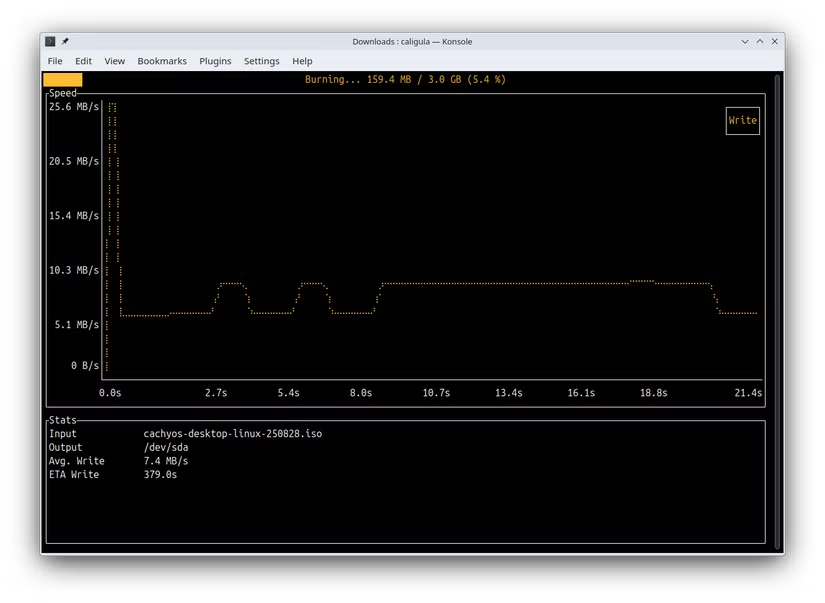
Caligula is a lightweight TUI designed for writing ISO and IMG files to USB drives.
Users can start Caligula instead of manually running dd or other disk writing commands like this:
caligula burn filename.iso
The interface guides users through checksum verification and target disk selection. During the writing process, Caligula provides a visual graph showing the transfer speed.
Installation options include:
Arch Linux:
sudo pacman -S caligula
Through the Rust package manager (if installed):
cargo install caligula
Other distributions may require following the project's installation guide.
Kew Plays Local Music from the Terminal
(Source: HowToGeek)
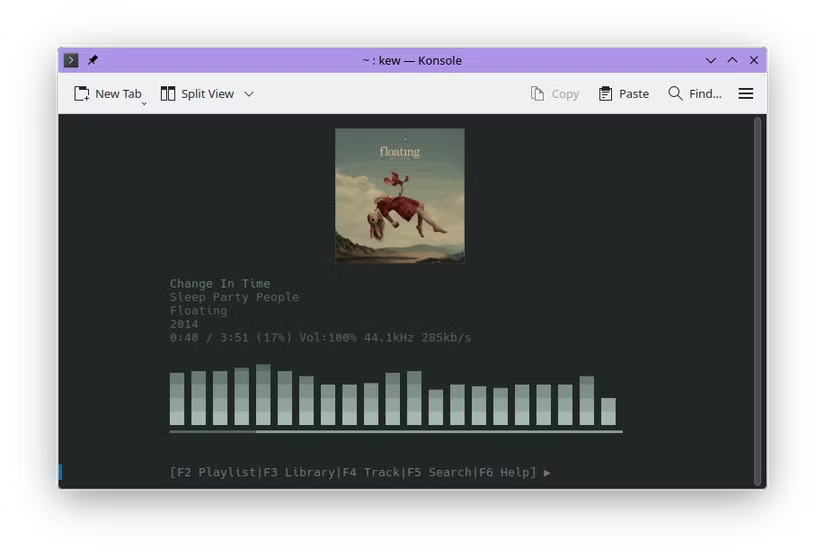
kew is a terminal music player application designed for users with a local music collection.
By default, kew scans the ~/Music directory and displays the library in a navigable interface. Users can navigate with the arrow keys and press Enter to play tracks or albums.
The application supports:
- Album covers and visualizer modes
- Playlist views
- Shuffle play
- Quick launch by artist name
For example:
kew smiths
This command attempts to play music by The Smiths from the user's library. Users can also shuffle a specific artist:
kew shuffle smiths
Installation commands:
Debian or Ubuntu:
sudo apt install kew
Arch Linux (AUR):
yay -S kew
openSUSE Tumbleweed:
sudo zypper install kew
nnn Provides Fast File Navigation
(Source: HowToGeek)
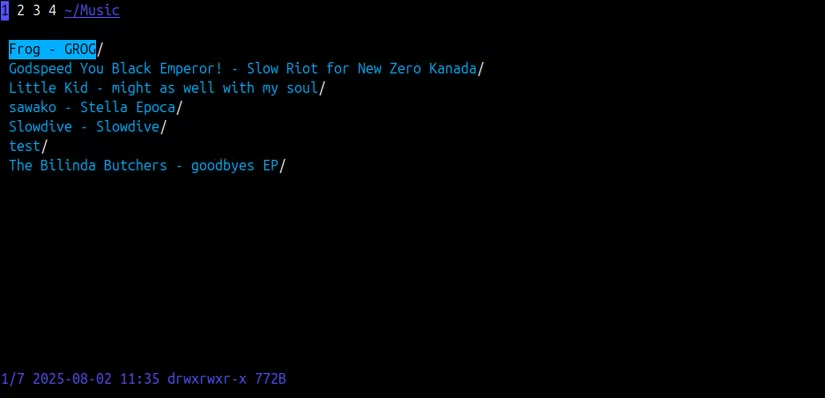
nnn, also known as n³, is a terminal file manager that reduces repetitive cd and ls commands based on keyboard navigation.
Starting nnn is simple:
nnn
Users can:
- Enter directories using the right arrow key
- Go back using the left arrow key
- View file metadata such as modification dates and permissions
nnn is available in most distribution repositories:
Debian or Ubuntu:
sudo apt install nnn
Fedora:
sudo dnf install nnn
Arch Linux:
sudo pacman -S nnn
openSUSE:
sudo zypper install nnn
The Importance of TUIs for Linux Users
Terminal user interface applications provide a middle ground between command-line tools and fully graphical applications. They allow users to stay in the terminal while reducing the need to memorize syntax-heavy commands.
All four tools are open source and available through common Linux package managers. The availability of features and installation steps may vary slightly depending on the distribution and repository configuration.










Yorumlar
(6 Yorum)