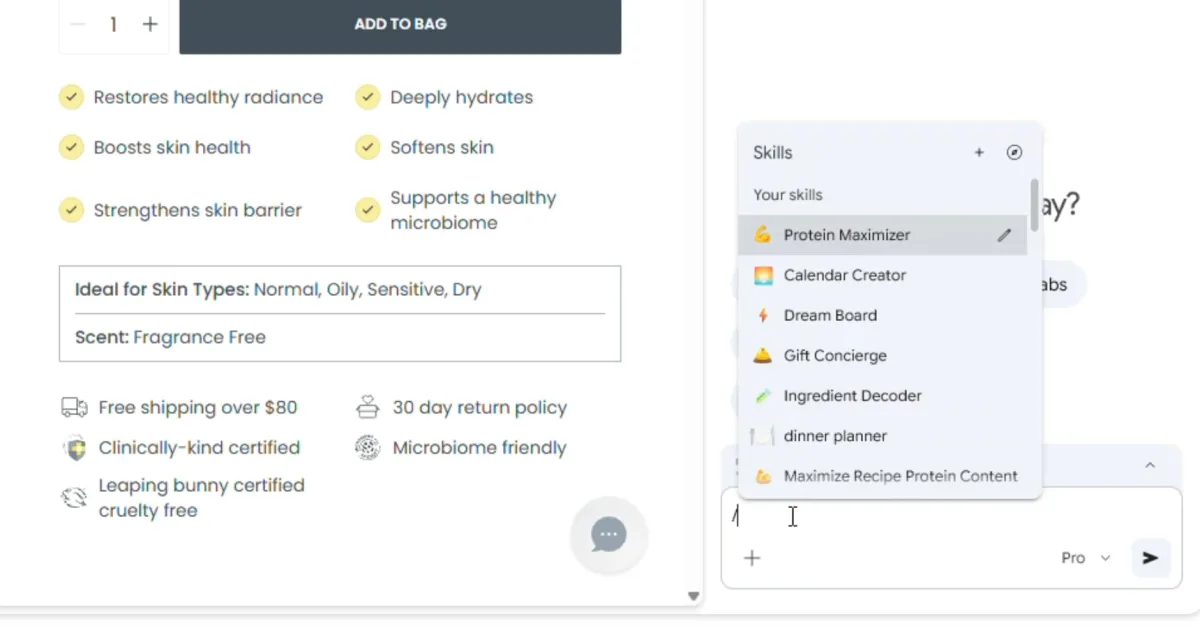
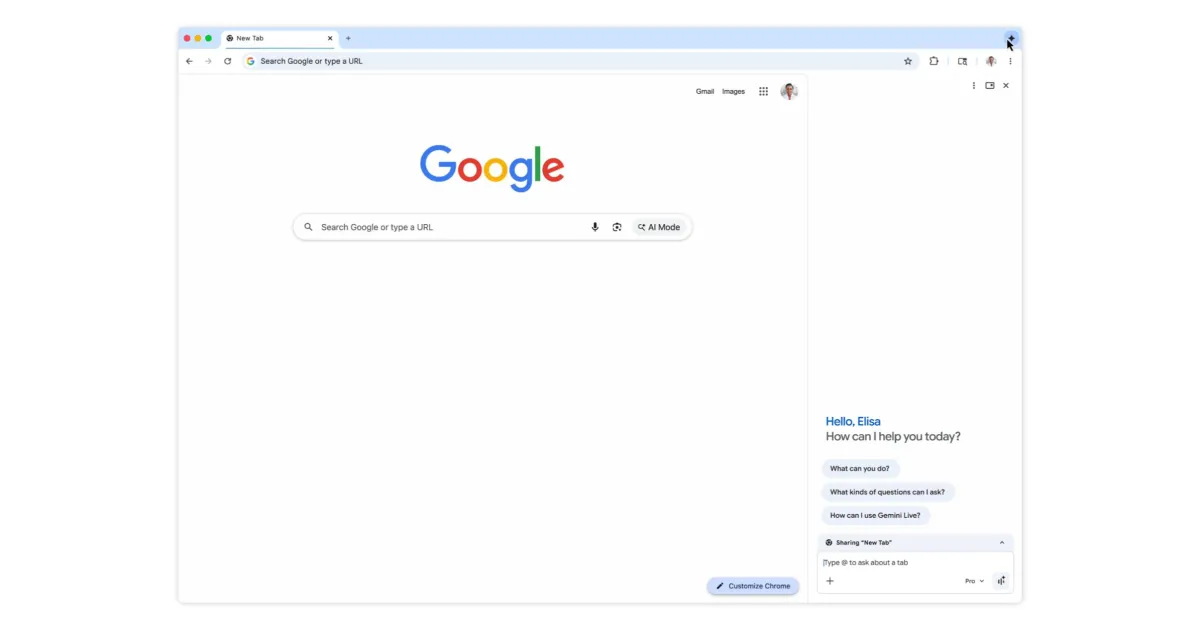
Gemini in Chrome is gaining a new Skills feature that allows you to quickly execute frequently used prompts. This feature not only saves time but also helps educate users on what Gemini can do when given a webpage.
Skills are one-click workflows that you invoke by typing a forward slash (/) in the prompt box. This macro will work on the current page you are viewing and on selected other tabs (using the '+' button).
Google recommends saving Gemini prompts in a way that you will “want to use them again,” so you don’t have to copy and paste from chat history into a new conversation. Gemini will encourage you to save Skills at the end of chats. You can choose a name and assign a descriptive emoji.

Google offers a Skills library for “common tasks and workflows” at chrome://skills/browse. You can save and edit Skills that you find useful. Example use cases include:
- Health and Wellness: quickly calculating protein macros for any recipe
- Shopping: creating side-by-side technical comparisons across multiple tabs
- Productivity: scanning long documents to find key information
Do you want to analyze the contents of a product you are viewing online? Or choose the perfect gift from multiple options by comparing your budget against the buyer's interests?

In addition to searching for information, another use case is to transform information into infographics and visualizations for better understanding.
From a security perspective, Skills prompts will request confirmation before adding events to your calendar, sending emails, and performing other sensitive actions.
Skills are being rolled out to Gemini in Chrome (desktop) as of today.
Your saved Skills are available on any signed-in Chrome desktop device and can be managed by typing a forward slash (/) in Gemini and then clicking on the compass icon.








































Comments
(10 Comments)