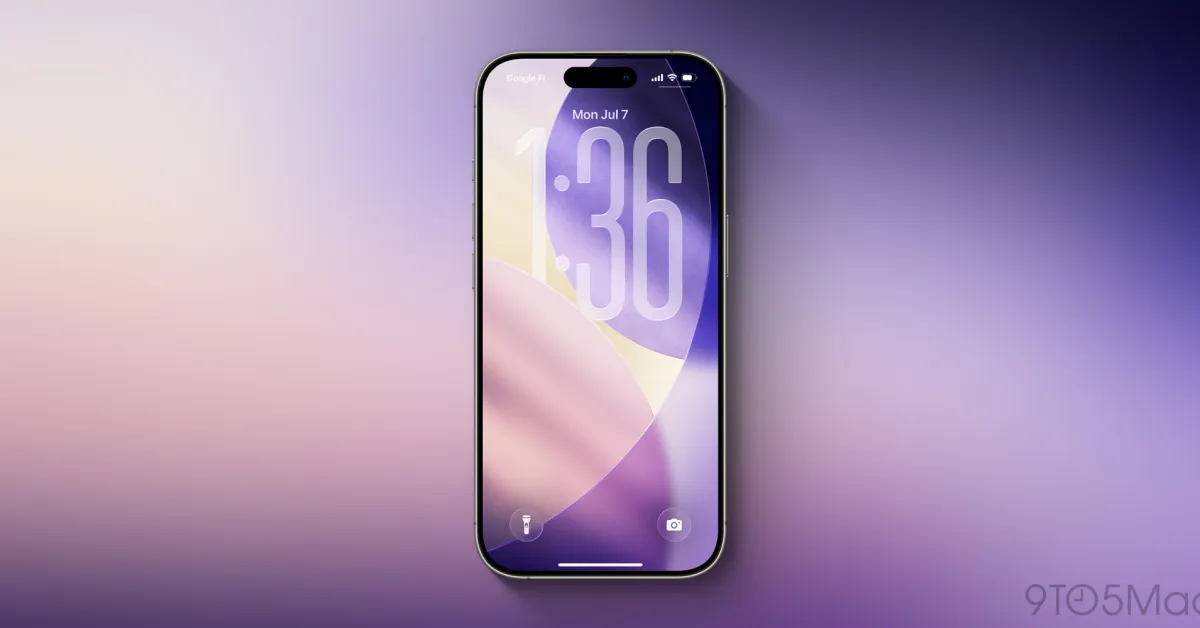
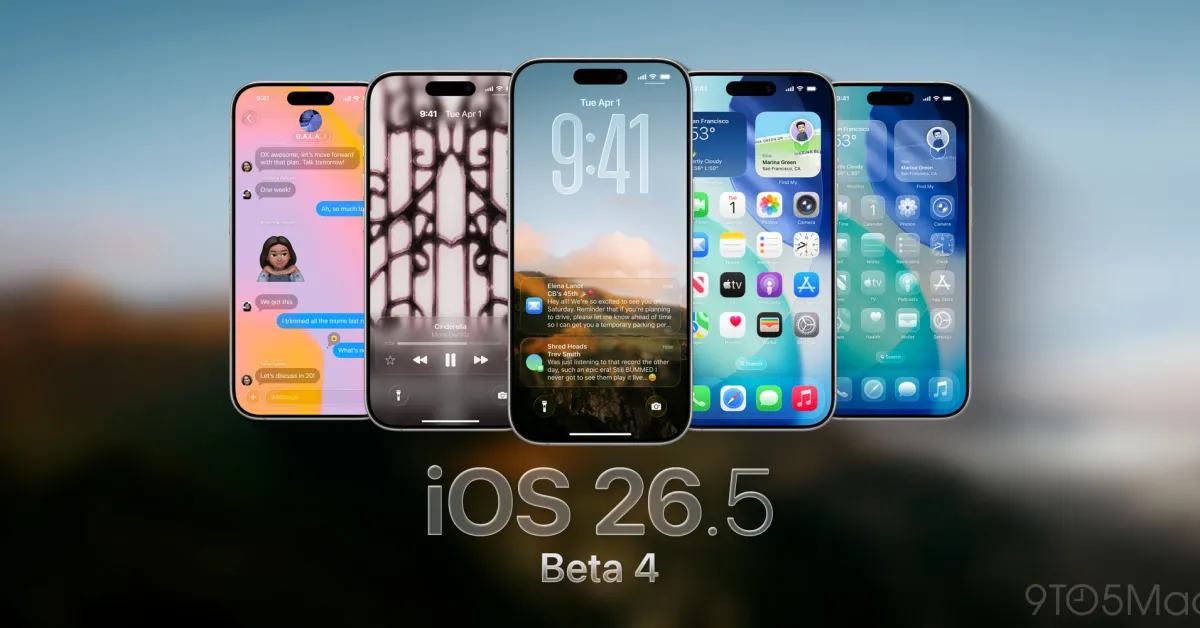
Major iPhone updates, like iOS 26, typically come with hundreds of new features and changes, but only a much smaller portion of these start to be used on a daily basis. Here are four new features in iOS 26 that I find myself using almost every day.
#1: Adaptive Toolbar in Notes App
I love Apple Notes and use it in a variety of ways; over 2,600 notes are proof of that.
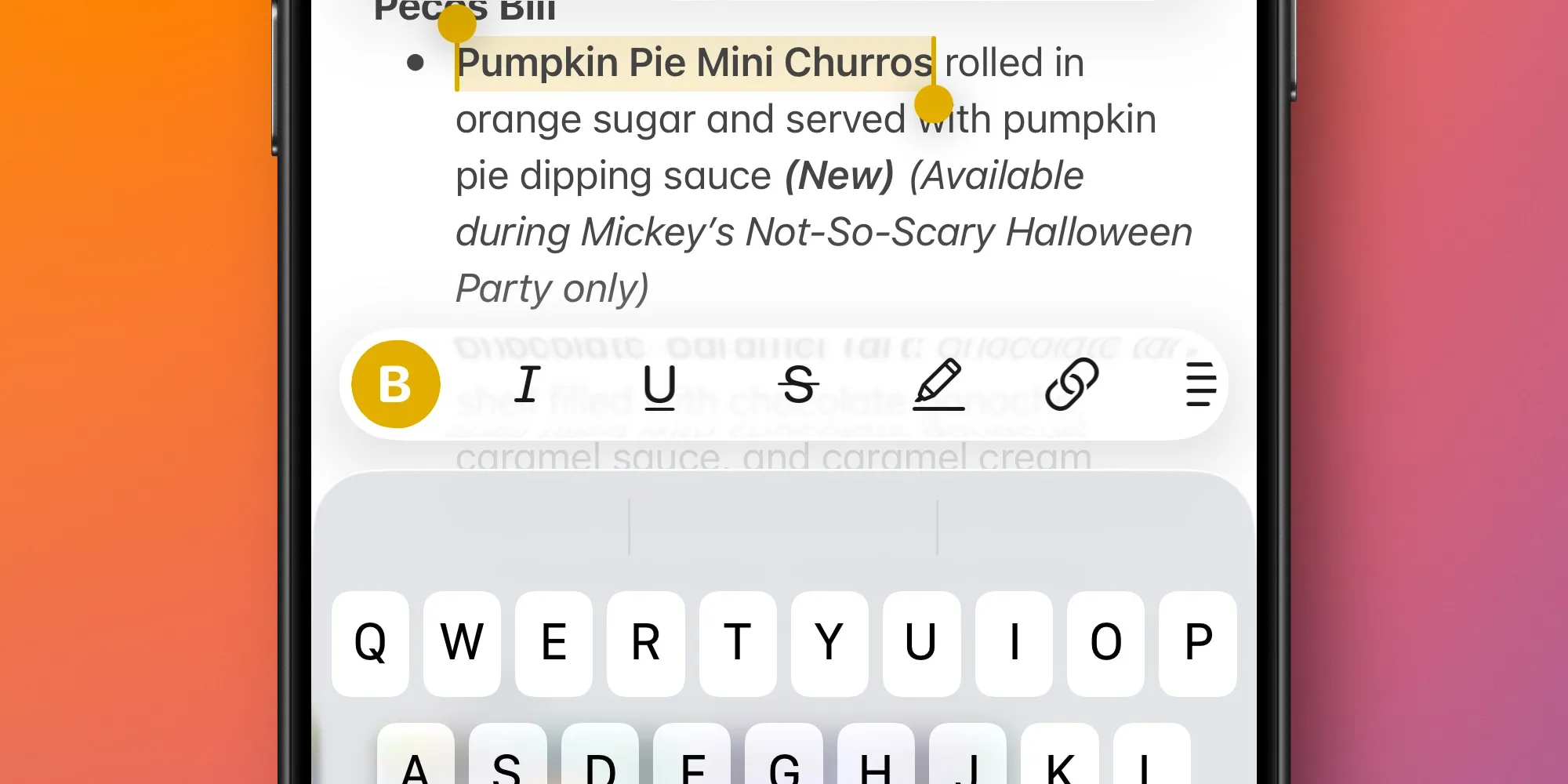
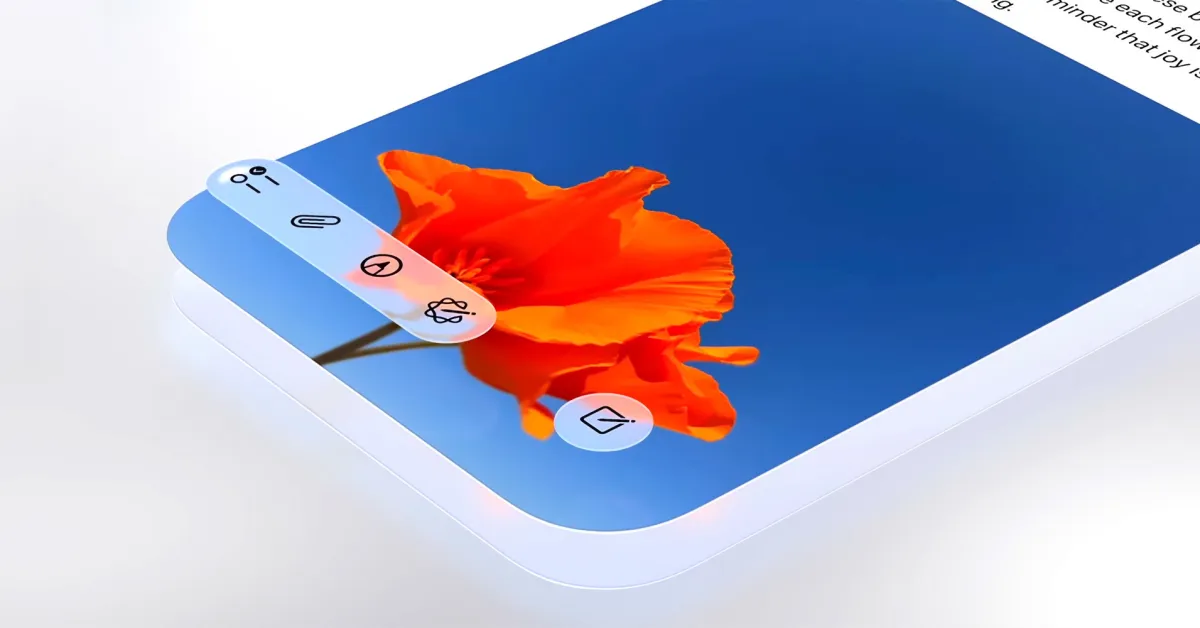
Among the new features in Notes for iOS 26, my favorite is the Adaptive Toolbar.
Notes has been adding new features every year for the past few years. However, continuous additions can lead to issues like feature bloat or difficulty in discovering what the app can do for many applications.
The Adaptive Toolbar does a great job of alleviating these issues.
While typing or editing text in a note, the toolbar just above the keyboard automatically changes to show the most relevant tools at that moment. For example:
- When editing standard text, you will see bold, italic, underline, and highlight tools.
- When you select multiple lines of text, you will see list options, indent, outdent, block quote tools, and more.
You can access the full list of tools with a scroll, but you shouldn’t have to switch too often.
#2: Preview App
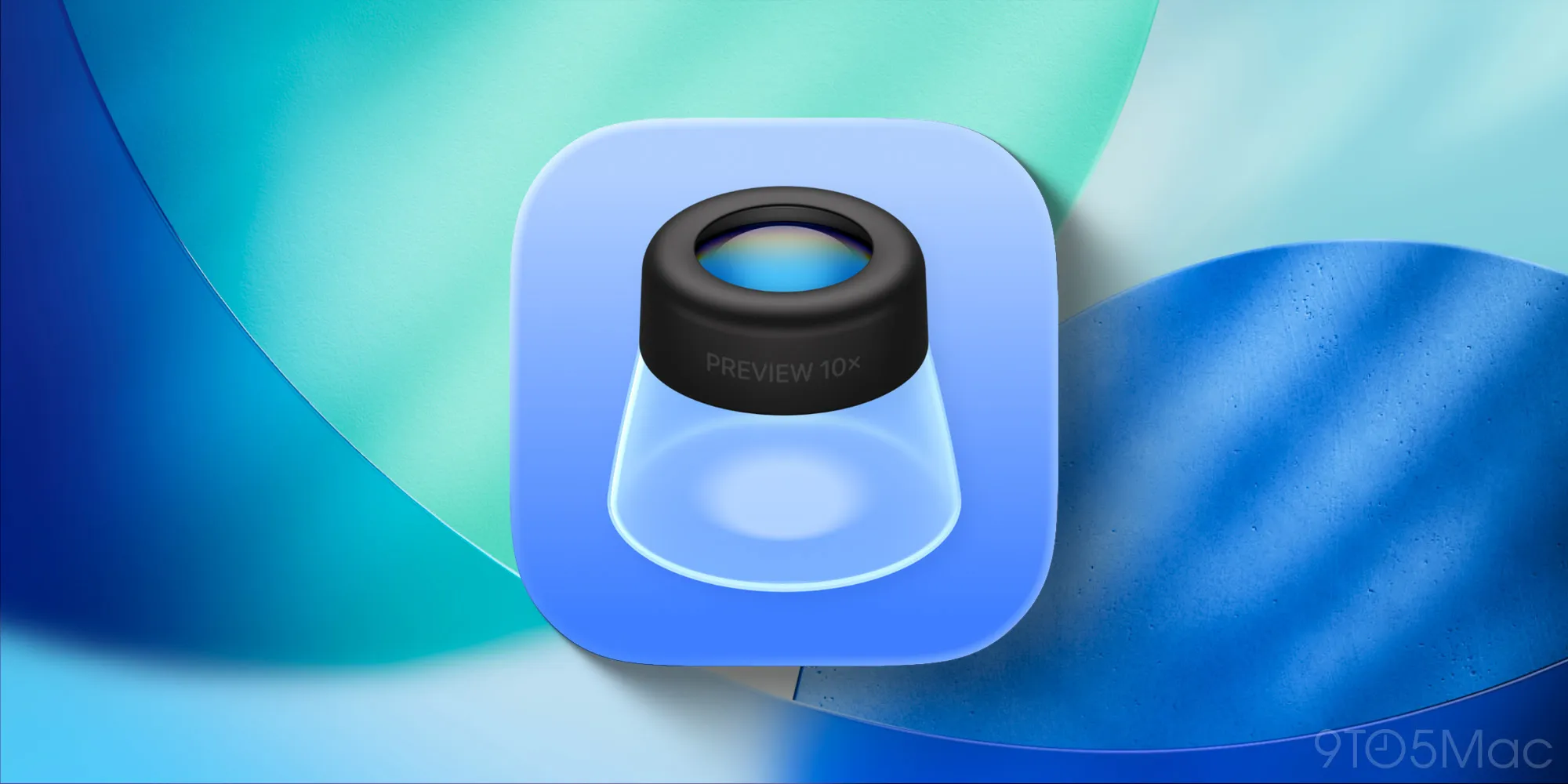
Preview has been around on Mac for years, but in my opinion, it wasn’t necessary on iOS. When I needed to access a PDF or image on my iPhone, Quick Look in the Files app was quite sufficient.
However, now that Preview has come to iOS, I was surprisingly pleased to have it.
Many functions of Preview are an export of previous Files features. But there are some new additions, and I particularly enjoyed being able to view a document in Preview while navigating my file system in the separate Files app. Especially when dealing with multiple PDFs, Preview and Files make a great combination.
Have you ever needed to view a long PDF and then compare something in a separate document? On Mac, you can open different PDFs in separate windows and use Finder as a separate window; that’s not a problem. Now in iOS 26, using Preview and Files together makes the iPhone experience much closer to what you can achieve on a Mac.
#3: Sleep Score in Health App
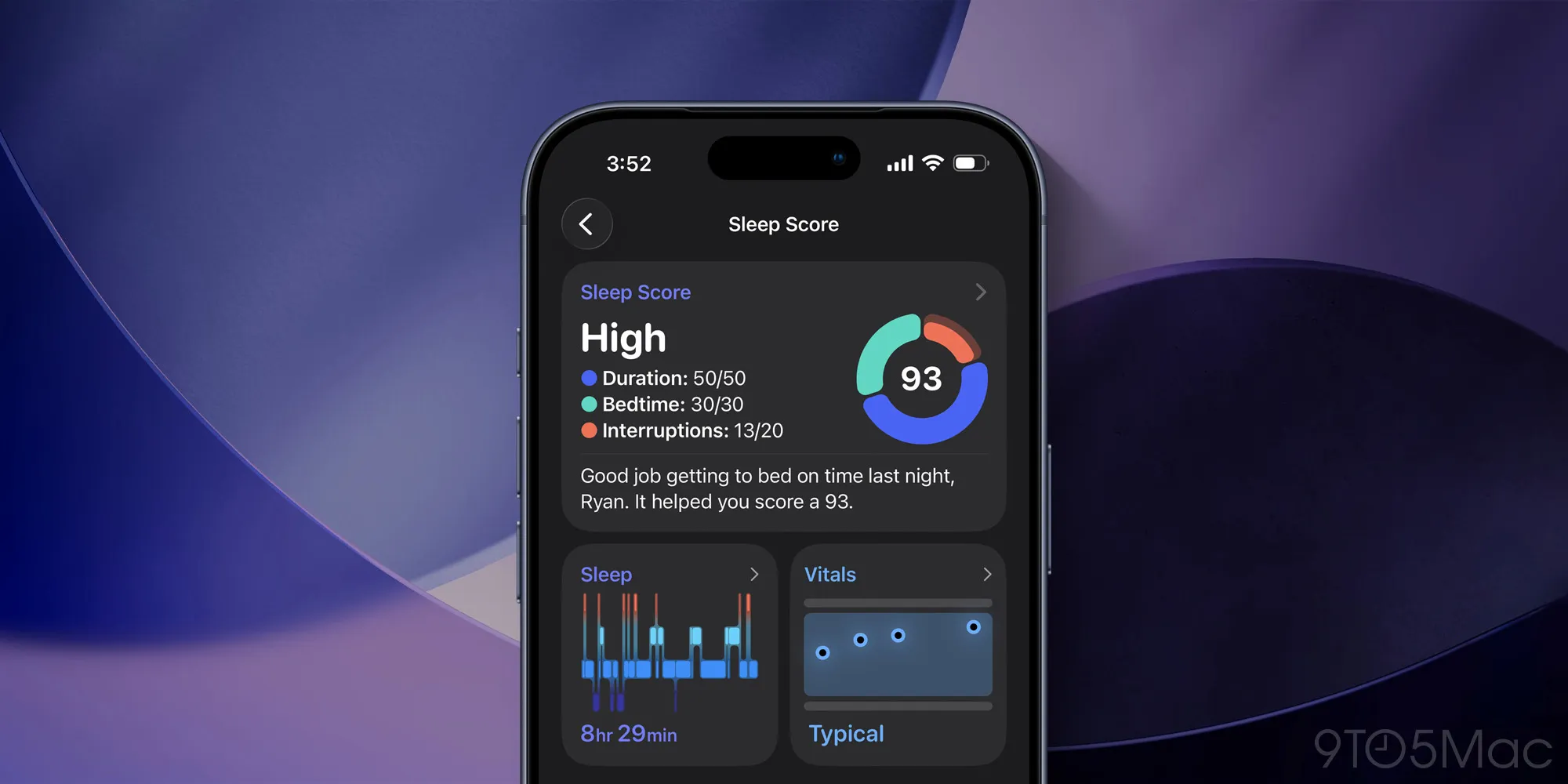
Sleep tracking is not a new feature in iOS 26, but the Sleep Score in the Health app is a new feature.
The Sleep Score takes your existing sleep data and makes it much more useful in my opinion.
I had never been impressed with the way sleep data was visualized in the Health app. However, getting a daily Sleep Score is a great way to understand how well I slept the previous night at a glance.
Metrics like Duration, Bedtime, and Interruptions all make a lot of sense to me. And when my score is particularly low or high on a given day, it’s easy to see what factors were at play.
Just as the Apple Watch makes it easier to track the main activity metrics with its Activity rings, the Sleep Score has encouraged me to pay attention to my sleep data every day.
#4: AI Search in Maps App
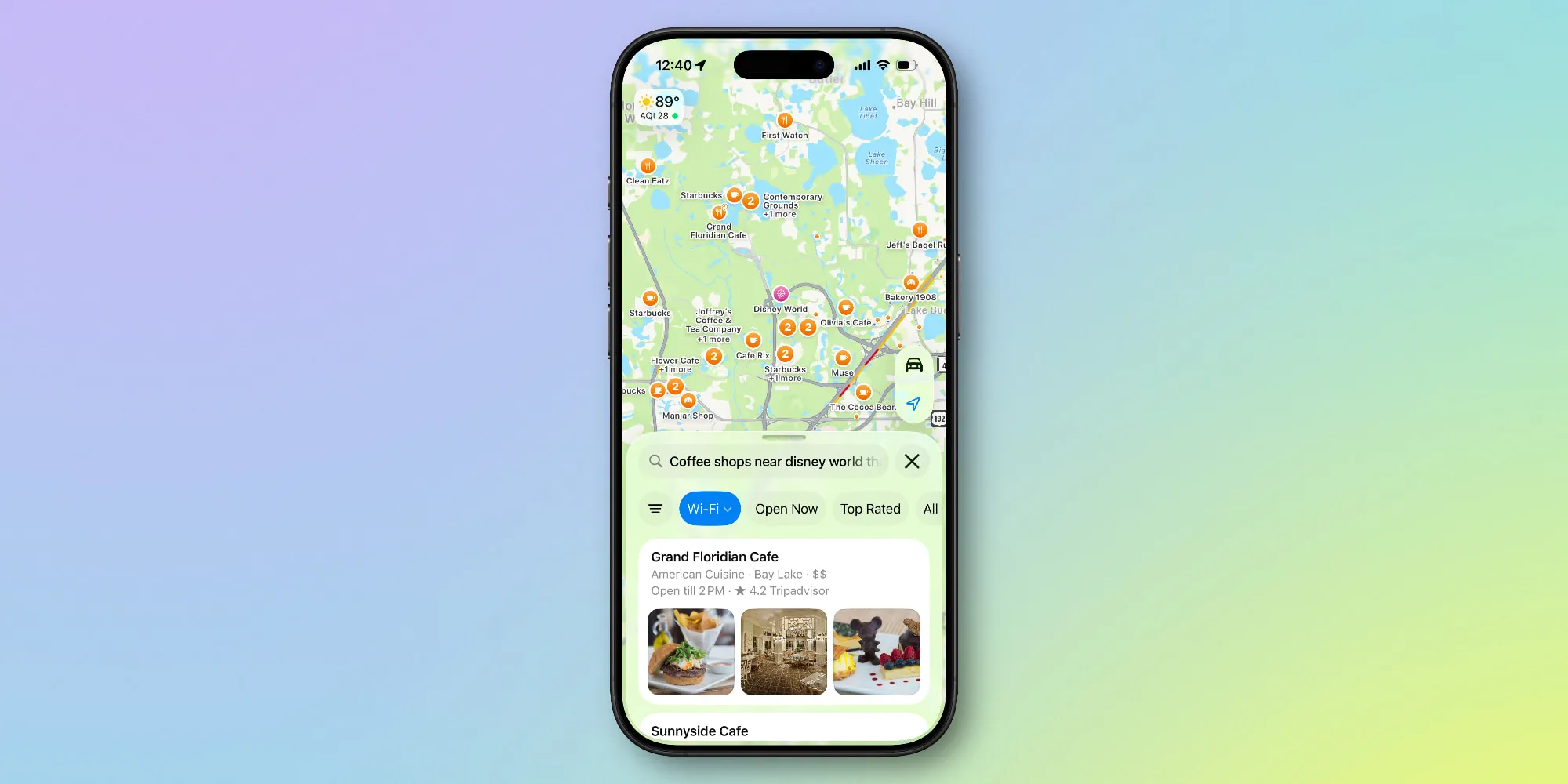
One of the most important features in Apple Maps is search. And it received a major update in iOS 26.
Search is now powered by Apple Intelligence on AI-compatible iPhones. This means that results are more relevant, smarter, and you can use natural language.
AI has been gradually enhancing search in various Apple apps, starting with Photos in iOS 18.1. And Maps is one of the areas where it could be most effective.
I use Maps every day, often performing both simple and complex searches. In my experience, it has been significantly improved by Apple Intelligence.
It’s now easier to find places I know exist, especially when multiple locations are available. However, the search in Maps has also improved for exploration thanks to AI that can understand queries containing several parameters.
Search may not be a flashy AI feature, but it is definitely useful.
Which new iOS 26 features do you use the most? Let us know in the comments.
Best iPhone Accessories
- AirPods Pro 3 (limited time $224 price)
- 10-year AirTag battery case 2-pack
- MagSafe Car Mount for iPhone
- Apple’s new AirTag 2 (single pack / 4-pack)
- 100W USB-C fast charging power adapter


















Comments
(9 Comments)