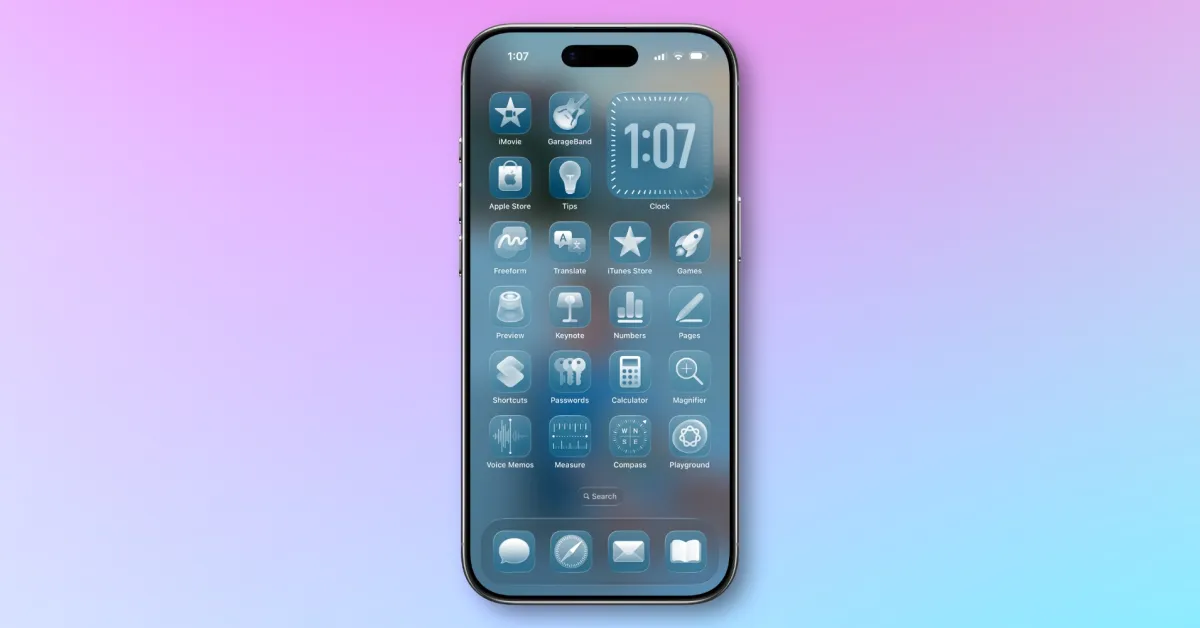
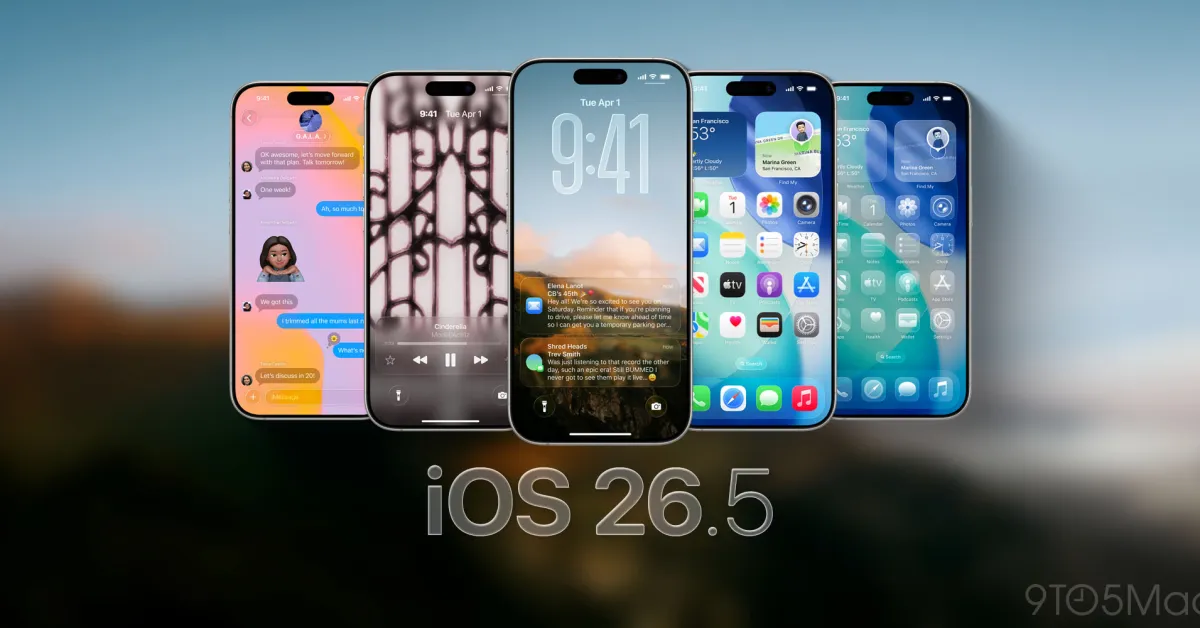
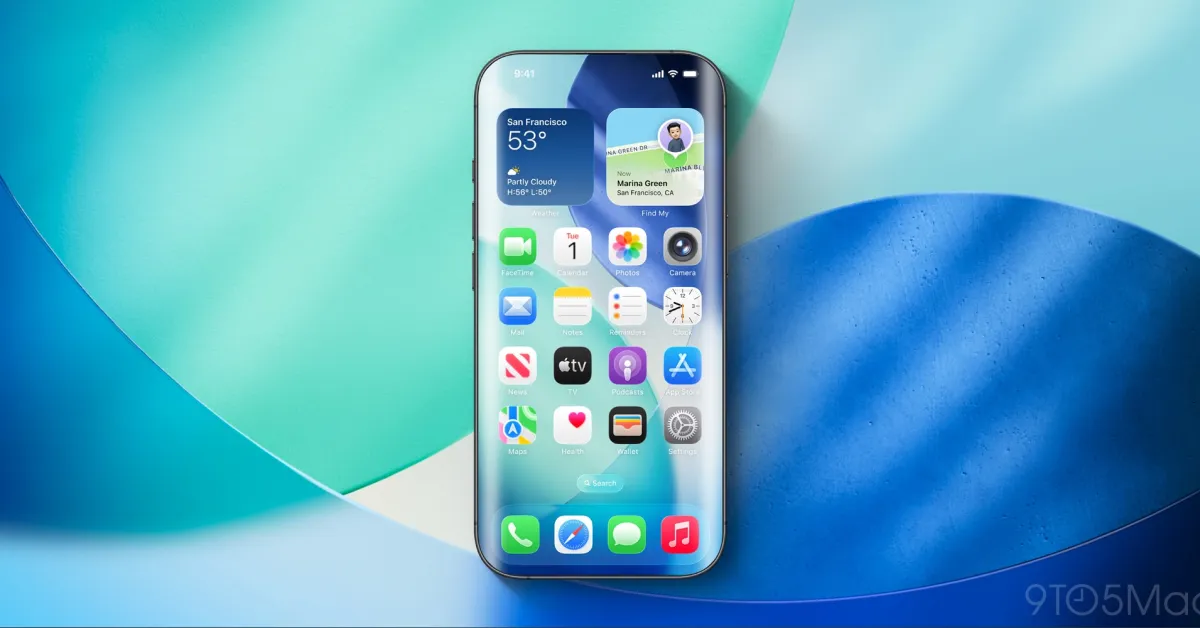
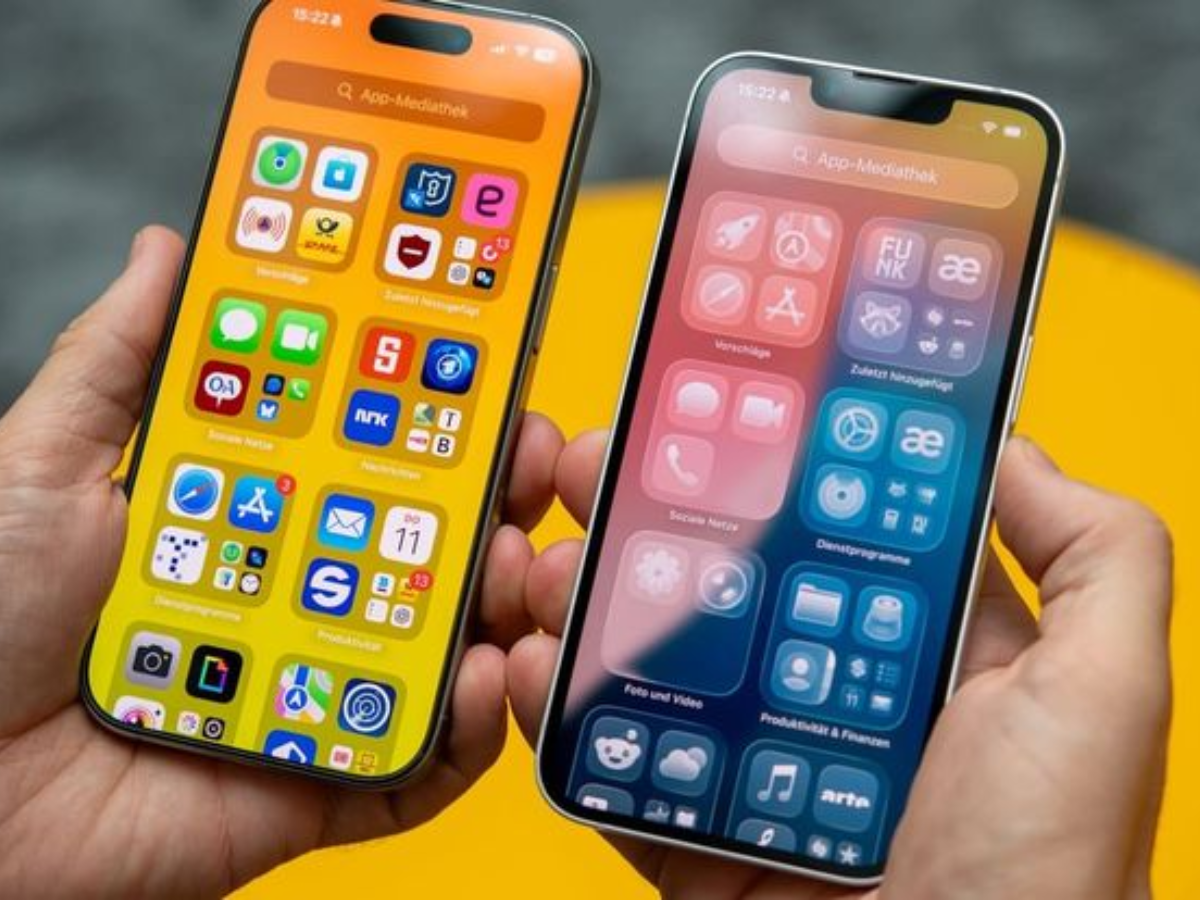
iOS 26.4 introduces two new ways to customize the Liquid Glass design on your iPhone.
Reduce Motion and Reduce Transparency allows you to minimize more Liquid Glass effects in iOS 26.4
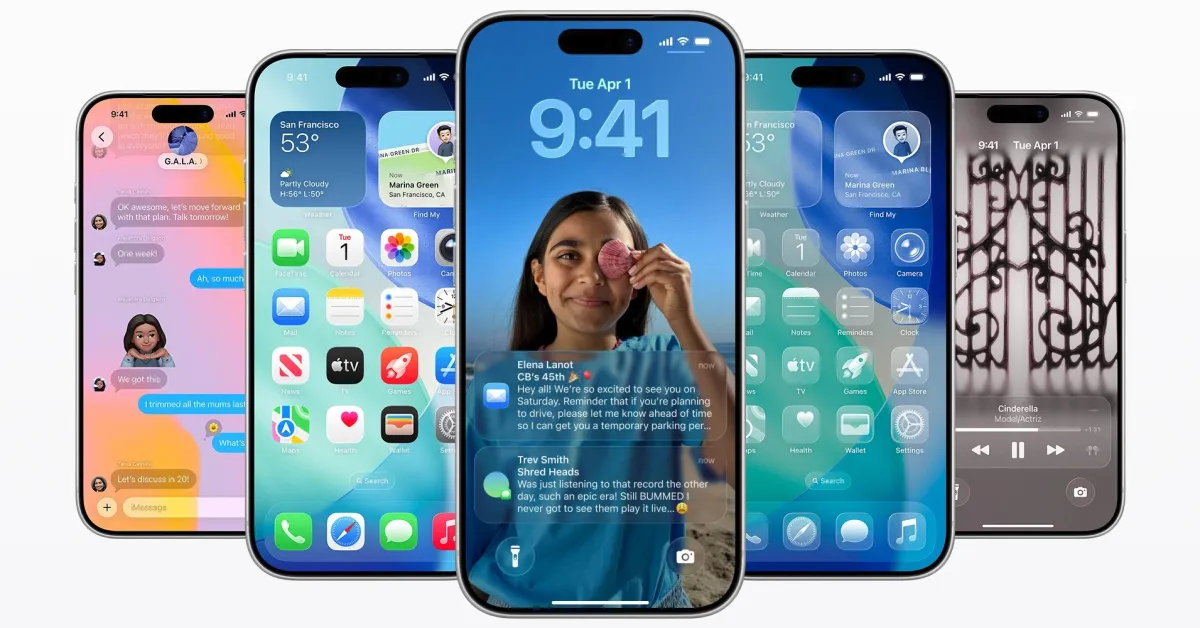
According to rumors, Apple may allow users to adjust Liquid Glass with a slider in iOS 27. But for now, Apple continues to update the iPhone design in iOS 26.
iOS 26.4 expands customization tools with two settings:
- Reduce Transparency, a completely new feature in iOS 26.4
- Reduce Motion, an updated feature in iOS 26.4
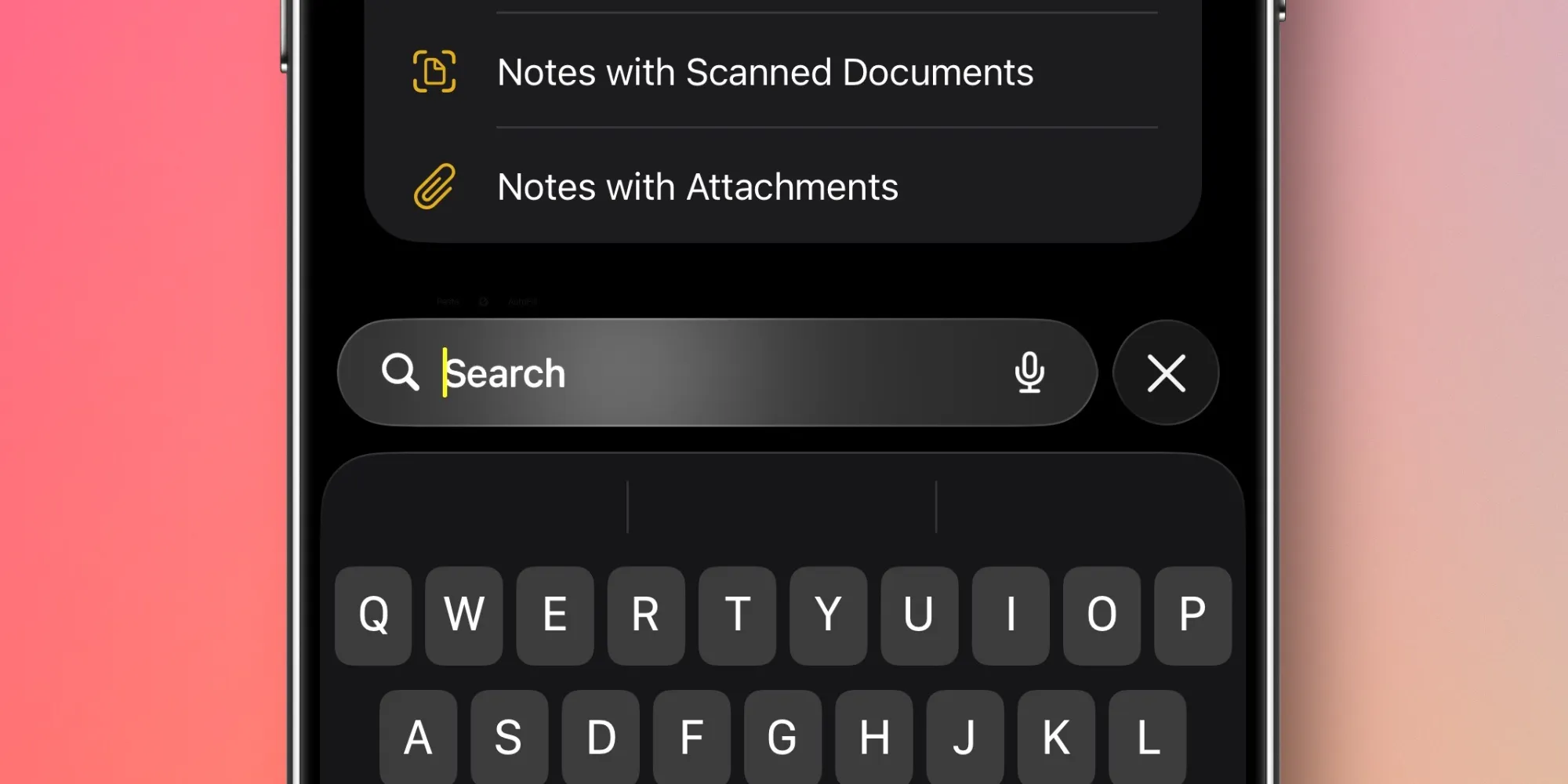
Reduce Transparency allows you to reduce the flashing effects that occur when interacting with certain Liquid Glass UI elements. According to Apple's definition:
Minimize highlighting and flashing when interacting with elements on the screen, such as buttons or the keyboard.
For examples of how this looks, you can check out this X post.
You can find the new transition by going to Settings ⇾ Accessibility ⇾ Display and Text Size.
Reduce Motion is not new in iOS 26.4, but the Accessibility feature has been updated and expanded in Apple's latest update.
Apple states that Reduce Motion now "reduces Liquid Glass animations more reliably for users sensitive to screen motion."
If you are a Reduce Motion user after updating to iOS 26, I hope the improvements to this feature will help you.
You can find the updated transition in Settings ⇾ Accessibility ⇾ Motion.
Are you using any of these customization features for Liquid Glass in iOS 26.4? Let us know in the comments.





Comments
(4 Comments)