iOS 26 is a major update for many system applications such as Wallet, Messages, and Music. Although one of the popular applications, Apple Calendar, has relatively few changes, it has gained a unique new advantage: creating events through screenshots.
Calendar events are now as easy as taking a screenshot
It doesn't take long to discover that Apple has changed the default behavior of screenshots while using iOS 26.
Instead of appearing as a floating thumbnail in the bottom left, screenshots now open a full-screen user interface by default.
If you prefer, you can revert to the old behavior.
However, the main reason for this change is that Apple has updated screenshots with new "visual intelligence" capabilities on all AI-compatible iPhones.
One of these new screenshot features is related to Apple's Calendar app.
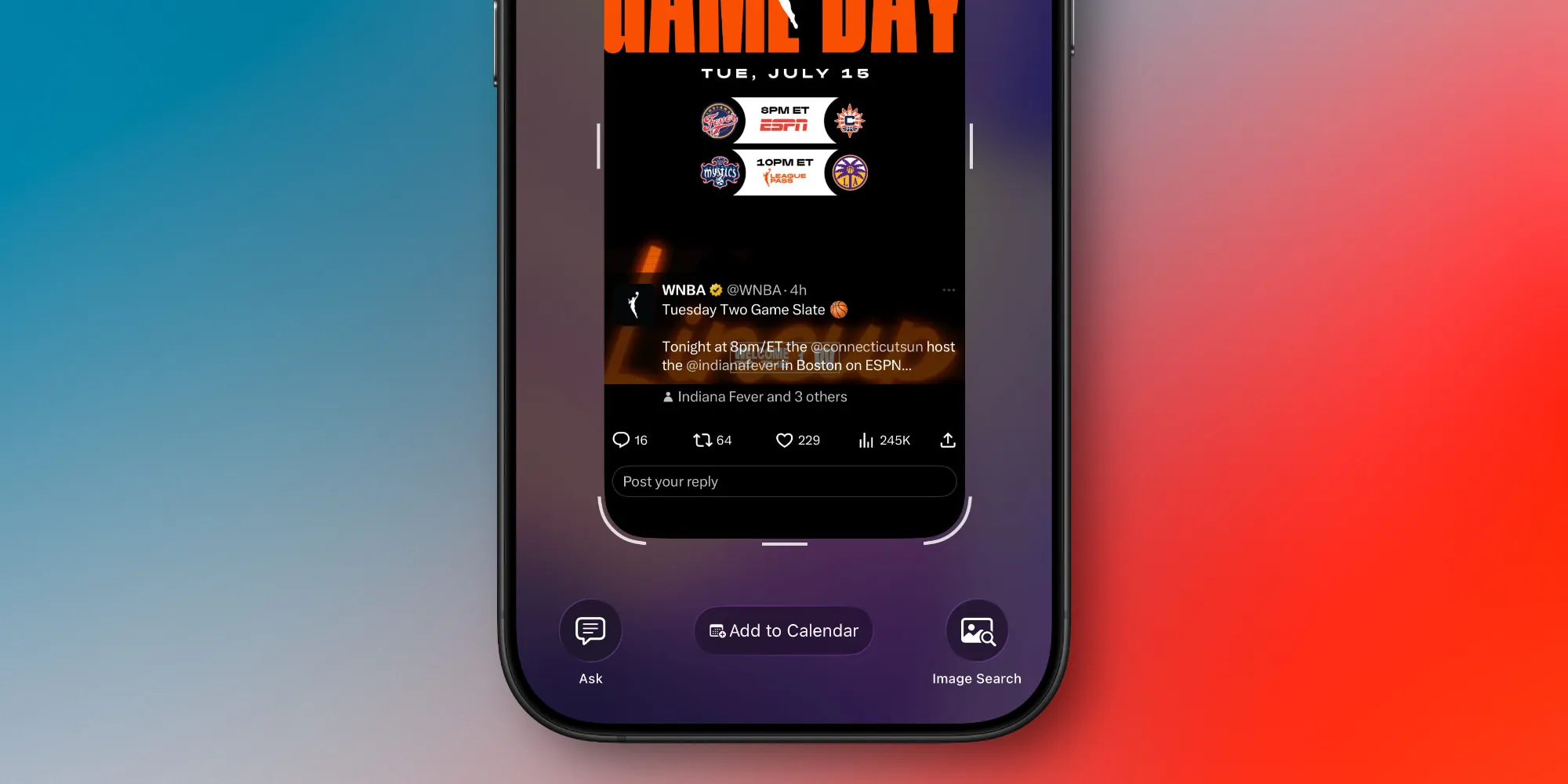
When you take a screenshot that includes any calendar event, iOS 26 presents a handy new button at the bottom of the screen: 'Add to Calendar.'
Note: This button is only visible in the default full-screen user interface. If you have reverted to thumbnail view, you will need to tap the thumbnail first.
How does 'Add to Calendar' work in iOS 26?
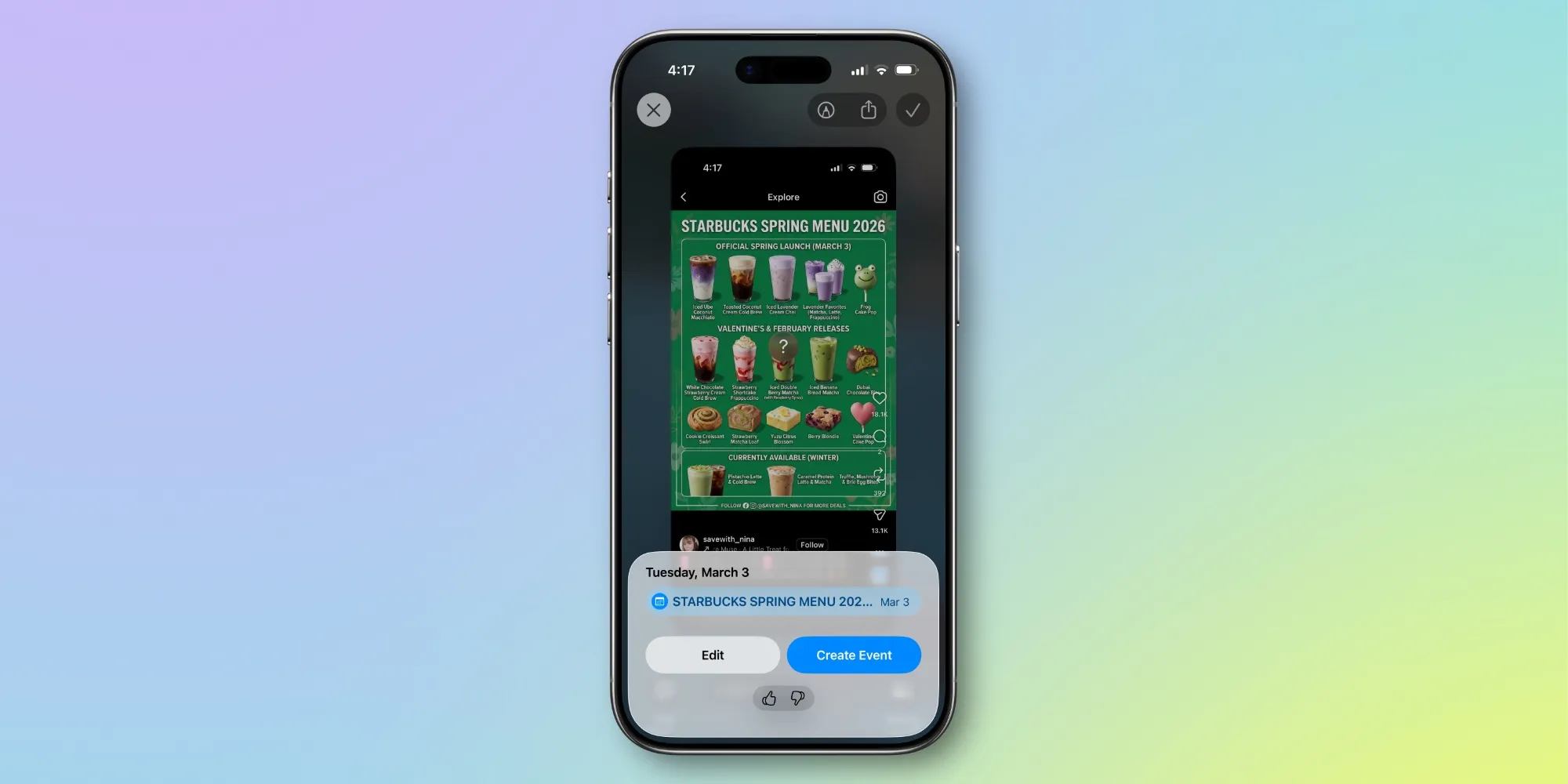
'Add to Calendar' truly lives up to its name. Using Apple Intelligence, the event details present in your screenshot are transformed into a usable calendar event.
After tapping the 'Add to Calendar' button, you will be able to preview exactly what will appear in your calendar. If everything looks correct, you can complete the process by tapping the 'Create Event' button.
If you want to change a detail, there is an 'Edit' button that loads the standard event creation panel of the Calendar app. A common use of the 'Edit' button for me is to change which calendar I will add the event to.
Once you get used to adding calendar events this way, it becomes a nice differentiator for Apple’s default Calendar app.
And if you still prefer to use a third-party app, try adding your calendar account information to iOS 26's Settings ⇾ Apps ⇾ Calendar ⇾ Calendar Accounts section. Depending on your calendar service and app, this may lead to some data synchronization conflicts. However, if these issues are not proven, you can still benefit from the screenshot feature of Apple Calendar even if most of your calendar operations occur in a separate app.
Are you using the new 'Add to Calendar' screenshot feature in iOS 26? How is it working for you? Share with us in the comments.
Best iPhone accessories
- AirPods Pro 3 (limited time price $219)
- 10-year lifespan AirTag battery case 2-pack
- MagSafe Vehicle Mount for iPhone
- Apple's new AirTag 2 (1-pack / 4-pack)
- 100W USB-C fast charging power adapter























Comments
(7 Comments)