
Apple's Shortcuts app allows you to create complex shortcuts with over 25 new actions introduced in iOS 26. However, my two favorite and most used shortcuts in Apple's app only involve a single step.
#1: One-Tap Noise Cancellation for AirPods Pro
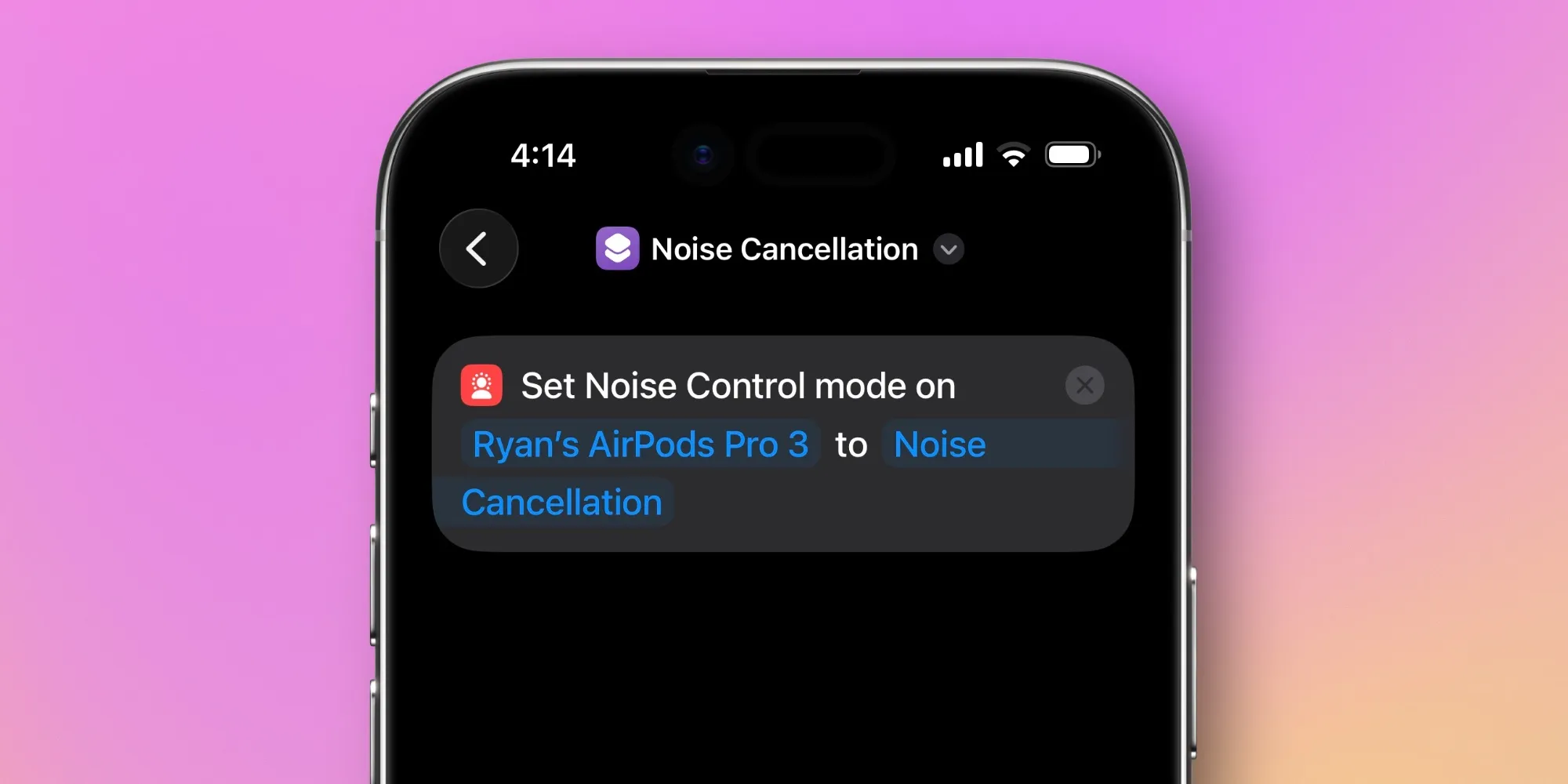
The shortcut I use the most is designed to activate noise cancellation on my AirPods Pro.
I use AirPods Pro 3, but this shortcut works with any AirPods model that supports Active Noise Cancellation (ANC).
My ‘Noise Cancellation’ shortcut does one thing quickly and efficiently: it toggles the noise cancellation on and off for my AirPods.
When I want to activate ANC, I swipe to open the Control Center and tap the ‘Noise Cancellation’ button that I set up through the ‘Run Shortcut’ control.
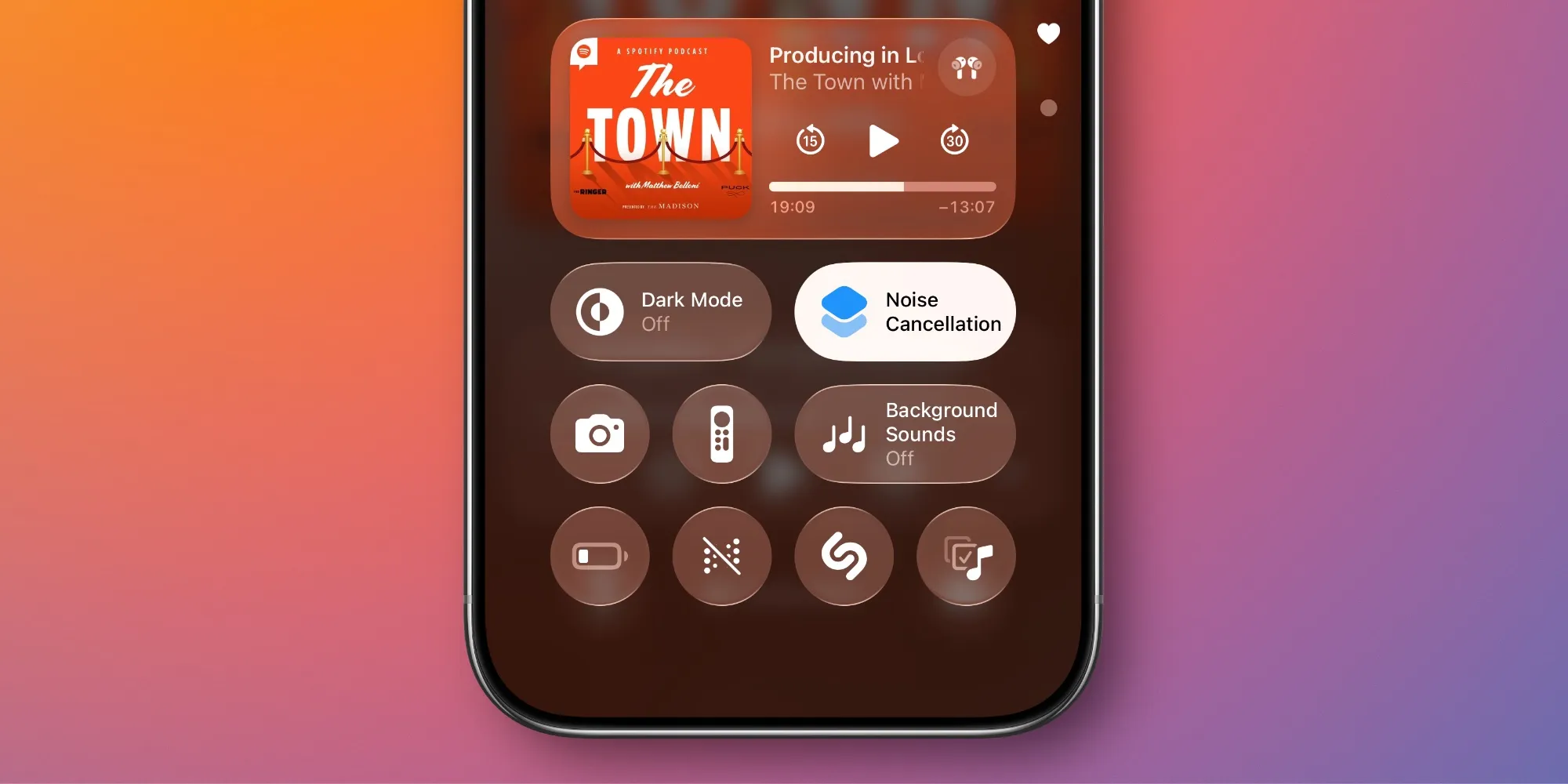
Squeezing the stem of the AirPods to activate ANC is an easy alternative, but I often find that I accidentally do this when ANC is already active. Therefore, I switch to Transparency mode and need to squeeze again.
Accessing the noise control modes hidden behind the audio slider in the Control Center is not as easy as I would like.
With my custom shortcut, I don't have to think about which mode I'm in or take several steps. I just tap the Control Center button, and if ANC is off, it turns on. If it’s already on, nothing happens.
It may seem like a small thing, but if you constantly switch between Transparency and Noise Cancellation modes, having a one-tap option to activate ANC is really nice.
You can download the shortcut from here. You will need to replace my AirPods with your own in the shortcut's action.
#2: Effortlessly Open App Settings
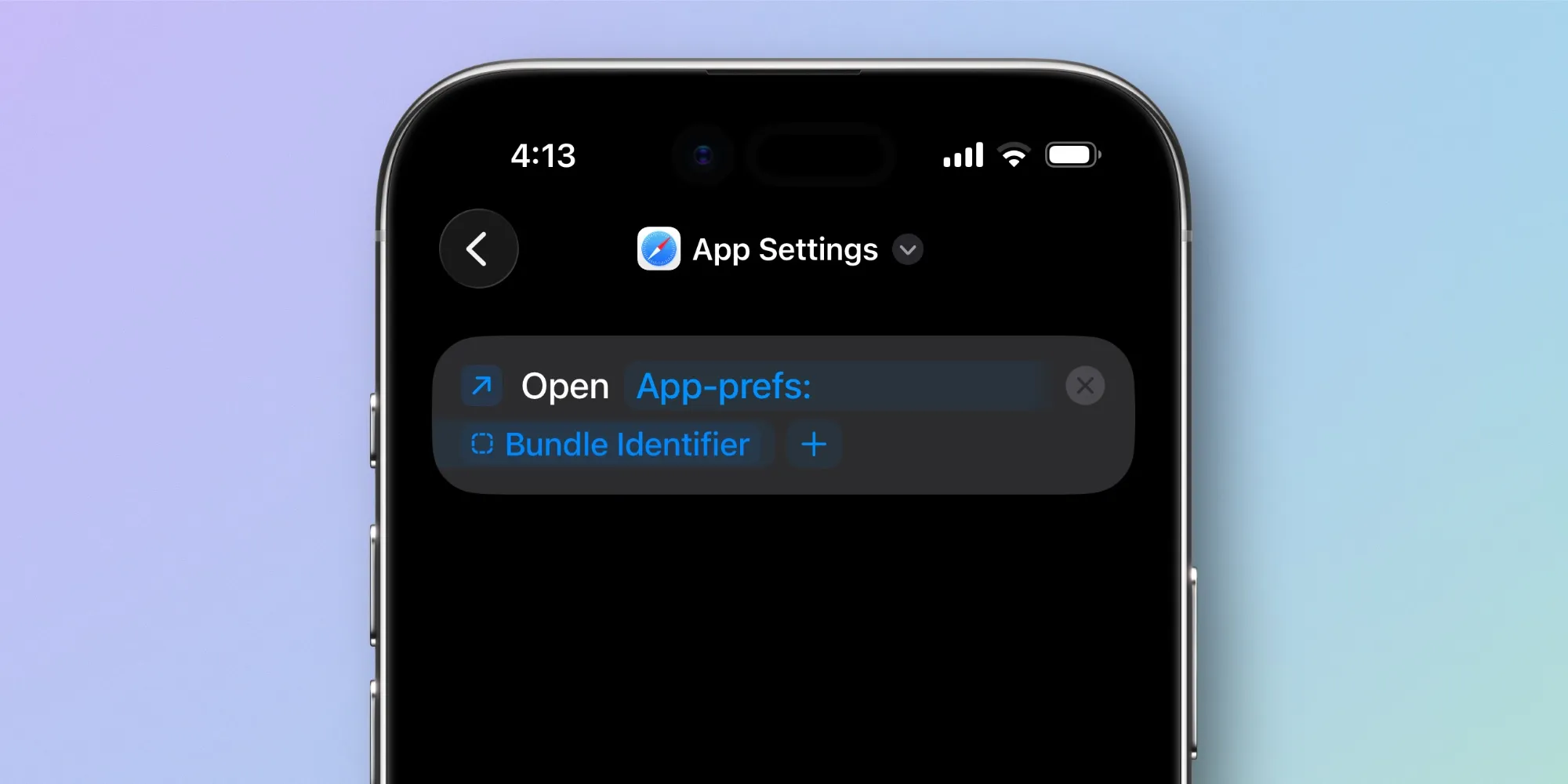
When Apple redesigned the Settings app on the iPhone in iOS 18, it hid app settings behind multiple taps and a lot of scrolling.
Fortunately, last year, Quinn Nelson shared a one-step shortcut that solves this problem.
With Nelson's shortcut, when you need to access the settings of an app while using it, you can easily do so through the Control Center.
The setup is extremely simple:
- Download this one-step ‘App Settings’ shortcut
- Add the ‘Run Shortcut’ control to the Control Center
- Assign that control to your new ‘App Settings’ shortcut
The basic principle of the shortcut is that 99% of the time, when you want to access an app's settings, you are already using that app.
Therefore, instead of exiting the app, opening Settings, scrolling down to find ‘Apps’, then scrolling again to find the app and tapping it, you can simply open the Control Center and tap the ‘App Settings’ shortcut. That's all.
This one-step Apple Shortcut is a GAME CHANGER. No more Settings -> Apps -> and then finding the app.
— Quinn Nelson (@SnazzyLabs) September 20, 2025
Just swipe from the Control Center, run the shortcut, and you're automatically directed! pic.twitter.com/jnsBvff3ye
Breaking old habits may take some time, but once you do, this shortcut will save you a few steps every time.
You can download the shortcut from here.
What are your favorite shortcuts in Apple's app? Share with us in the comments.
Best iPhone Accessories
- AirPods Pro 3 (limited time $224 price)
- 10-year AirTag battery case 2-pack
- MagSafe Car Mount for iPhone
- Apple's new AirTag 2 (single pack / 4-pack)
- 100W USB-C fast charging adapter

































Comments
(2 Comments)