Update April 7, 2026, 16:00 ET: The Shortcuts API has been fixed and is expected to work smoothly. Here is the link: Artemis II image shortcut
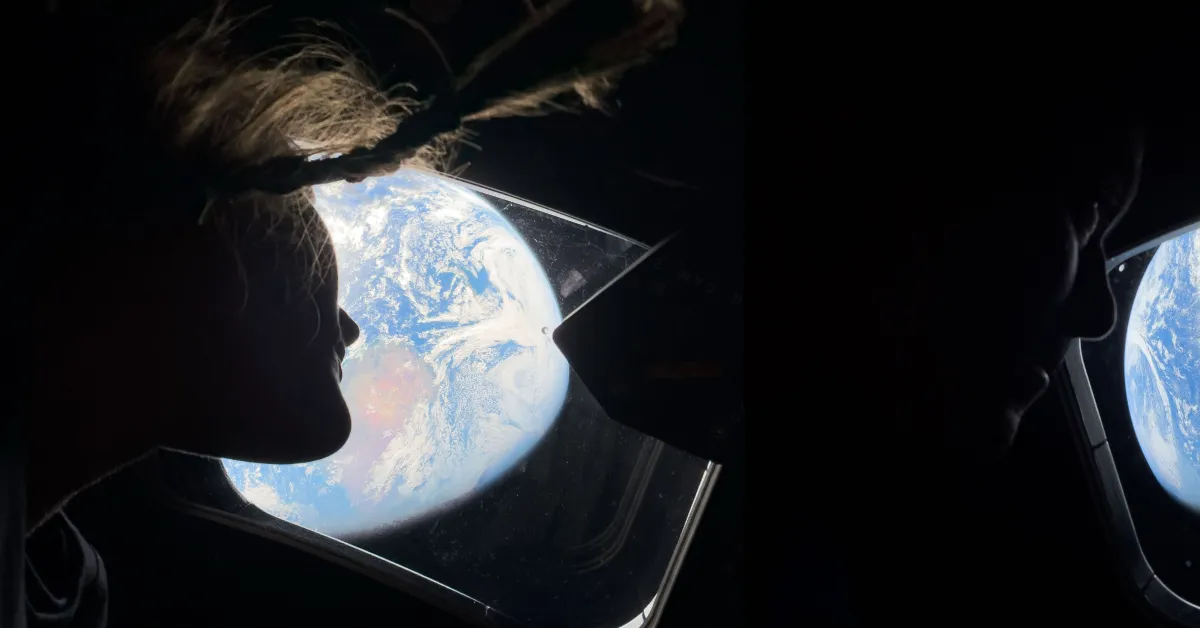
Recently in the news, you may have seen that a mission is being carried out to return humans to the Moon for the first time in 50 years. On April 1, NASA launched Artemis II with four astronauts to orbit the Moon and prepare for a landing on the lunar surface. We have already reached the far side of the Moon and seen stunning images from Artemis II. Some of these images were taken with an iPhone! NASA is sharing the latest images on its Flickr page, and someone has created a shortcut that allows you to pull these images directly to your device. Here’s how to do it!
Artemis II Image Download Shortcut
Apple enthusiast and channel friend Stephen Robles is known as a Shortcuts master. He has built a brand to teach how powerful the Shortcuts app is on Apple devices and has gained a strong following. When I saw his tweet, I knew I had to try it.
The Artemis II images are incredible. I made this Shortcut that pulls all the high-quality images from NASA's Flickr page. Select the images you want and save them to Photos.
— Stephen Robles (@stephenrobles) April 7, 2026
It takes a while to work, pulling large files, but I’ll try to make a lighter version: https://t.co/JQYje55WBB

The setup is extremely simple. All you have to do is click on the shortcut link in Stephen’s tweet or click here. You will then be directed to an iCloud page, and it’s enough to click on the “Get Shortcut” option at the bottom of the page. This will open your Shortcuts app and add the Artemis II Images shortcut to your library. To run the shortcut:
- Tap the “Artemis II Images” shortcut
- Wait for it to load (it will take a minute to gather the images)
- A small pop-up will appear with all the images
- Select the images you want
- Tap on Select
- Then they will appear in your photo library
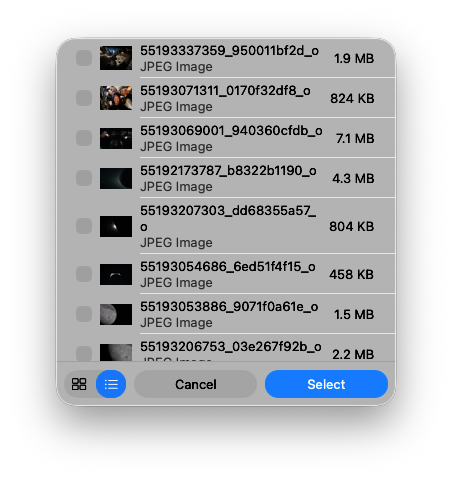
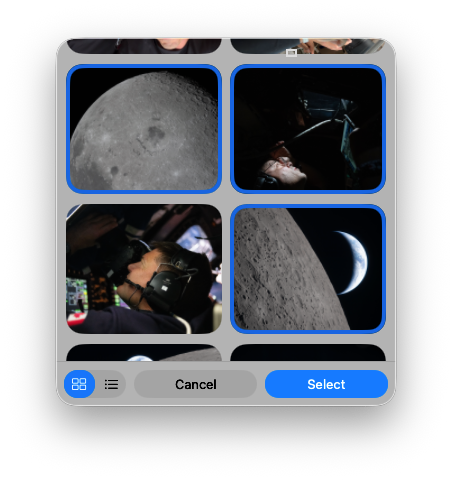
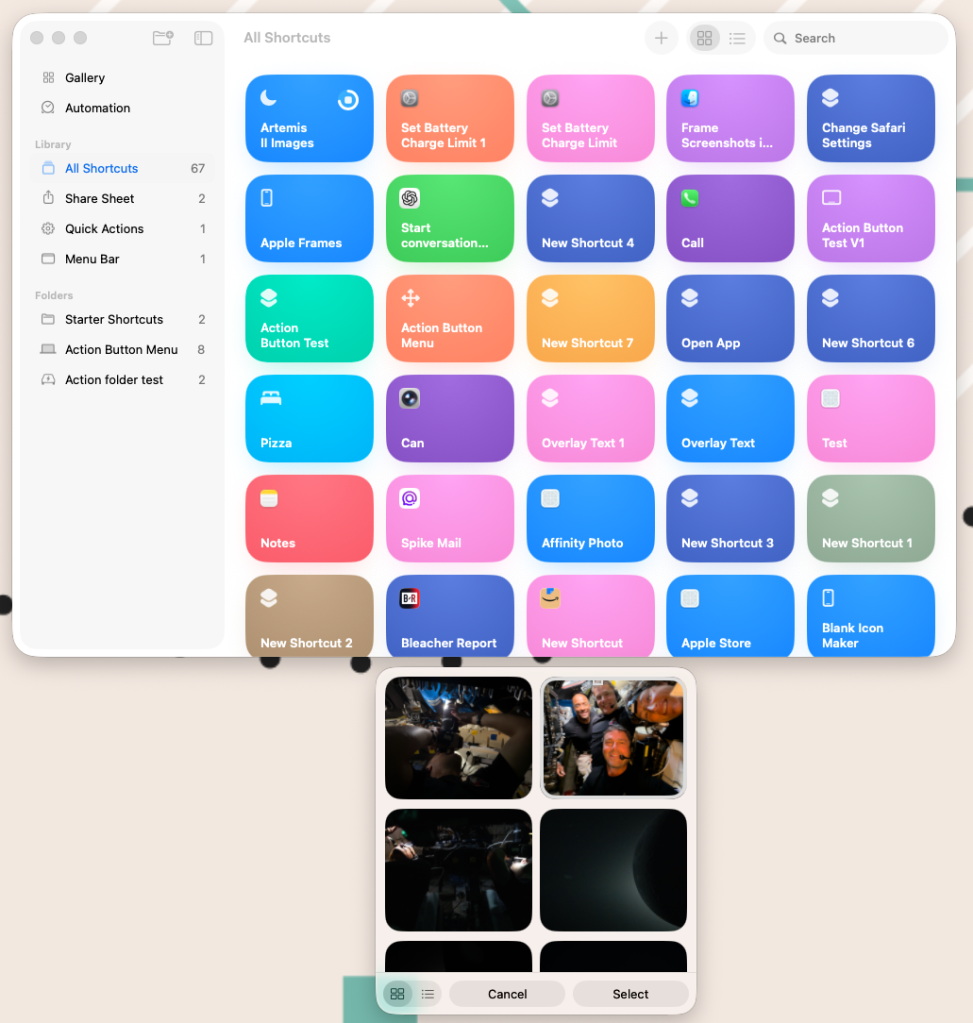
As I mentioned before, it takes a minute to gather the images, so let it work in the background and then you will receive a small pop-up window. You can choose either list view or image view. After you have selected the photos you want, they will be saved to your photo library.
I tested this on my Mac, but it should work the same way on your iPad and iPhone. If you want to quickly get these amazing images on your iPhone, it's a fun and clever way to do it!
Also, don’t forget to check out the interview we did with Stephen a few weeks ago!
Best Apple Deals
- AirPods Pro 3 (Limited time $224)
- M5 MacBook Air (Limited time $949!)
- Best smart wall charger with diagnostic screen
- Kuxiu X40 Turbo 3-in-1 25W MagSafe Charger
- Ultra-thin MagSafe Battery SolidSafe
- Best USB-C Cable 240W
- A16 iPad under $300

















Comments
(6 Comments)